Compression is a simple, effective way to save bandwidth and speed up your site. I hesitated when recommending gzip compression when speeding up your javascript because of problems in older browsers.
But it’s the 21st century. Most of my traffic comes from modern browsers, and quite frankly, most of my users are fairly tech-savvy. I don’t want to slow everyone else down because somebody is chugging along on IE 4.0 on Windows 95. Google and Yahoo use gzip compression. A modern browser is needed to enjoy modern web content and modern web speed — so gzip encoding it is. Here’s how to set it up.
Wait, wait, wait: Why are we doing this?
Before we start I should explain what content encoding is. When you request a file like http://www.yahoo.com/index.html, your browser talks to a web server. The conversation goes a little like this:
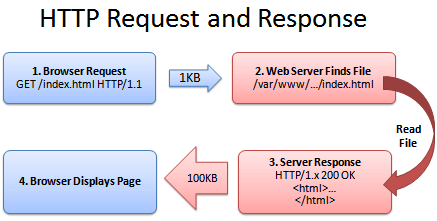
- Browser: Hey, GET me /index.html
- Server: Ok, let me see if index.html is lying around…
- Server: Found it! Here’s your response code (200 OK) and I’m sending the file.
- Browser: 100KB? Ouch… waiting, waiting… ok, it’s loaded.
Of course, the actual headers and protocols are much more formal (monitor them with Live HTTP Headers if you’re so inclined).
But it worked, and you got your file.
So what’s the problem?
Well, the system works, but it’s not that efficient. 100KB is a lot of text, and frankly, HTML is redundant. Every <html>, <table> and <div> tag has a closing tag that’s almost the same. Words are repeated throughout the document. Any way you slice it, HTML (and its beefy cousin, XML) is not lean.
And what’s the plan when a file’s too big? Zip it!
If we could send a .zip file to the browser (index.html.zip) instead of plain old index.html, we’d save on bandwidth and download time. The browser could download the zipped file, extract it, and then show it to user, who’s in a good mood because the page loaded quickly. The browser-server conversation might look like this:
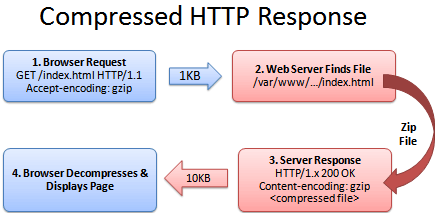
- Browser: Hey, can I GET index.html? I’ll take a compressed version if you’ve got it.
- Server: Let me find the file… yep, it’s here. And you’ll take a compressed version? Awesome.
- Server: Ok, I’ve found index.html (200 OK), am zipping it and sending it over.
- Browser: Great! It’s only 10KB. I’ll unzip it and show the user.
The formula is simple: Smaller file = faster download = happy user.
Don’t believe me? The HTML portion of the yahoo home page goes from 101kb to 15kb after compression:

The (not so) hairy details
The tricky part of this exchange is the browser and server knowing it’s ok to send a zipped file over. The agreement has two parts
The browser sends a header telling the server it accepts compressed content (gzip and deflate are two compression schemes):
Accept-Encoding: gzip, deflateThe server sends a response if the content is actually compressed:
Content-Encoding: gzip
If the server doesn’t send the content-encoding response header, it means the file is not compressed (the default on many servers). The “Accept-encoding” header is just a request by the browser, not a demand. If the server doesn’t want to send back compressed content, the browser has to make do with the heavy regular version.
Setting up the server
The “good news” is that we can’t control the browser. It either sends the Accept-encoding: gzip, deflate header or it doesn’t.
Our job is to configure the server so it returns zipped content if the browser can handle it, saving bandwidth for everyone (and giving us a happy user).
For IIS, enable compression in the settings.
In Apache, enabling output compression is fairly straightforward. Add the following to your .htaccess file:
# compress text, html, javascript, css, xml:
AddOutputFilterByType DEFLATE text/plain
AddOutputFilterByType DEFLATE text/html
AddOutputFilterByType DEFLATE text/xml
AddOutputFilterByType DEFLATE text/css
AddOutputFilterByType DEFLATE application/xml
AddOutputFilterByType DEFLATE application/xhtml+xml
AddOutputFilterByType DEFLATE application/rss+xml
AddOutputFilterByType DEFLATE application/javascript
AddOutputFilterByType DEFLATE application/x-javascript

# Or, compress certain file types by extension:
<files *.html>
SetOutputFilter DEFLATE
</files>
Apache actually has two compression options:
- mod_deflate is easier to set up and is standard.
- mod_gzip seems more powerful: you can pre-compress content.
Deflate is quick and works, so I use it; use mod_gzip if that floats your boat. In either case, Apache checks if the browser sent the “Accept-encoding” header and returns the compressed or regular version of the file. However, some older browsers may have trouble (more below) and there are special directives you can add to correct this.
If you can’t change your .htaccess file, you can use PHP to return compressed content. Give your HTML file a .php extension and add this code to the top:
In PHP:
<?php if (substr_count($_SERVER[‘HTTP_ACCEPT_ENCODING’], ‘gzip’)) ob_start(“ob_gzhandler”); else ob_start(); ?>
We check the “Accept-encoding” header and return a gzipped version of the file (otherwise the regular version). This is almost like building your own webserver (what fun!). But really, try to use Apache to compress your output if you can help it. You don’t want to monkey with your files.
Verify Your Compression
Once you’ve configured your server, check to make sure you’re actually serving up compressed content.
Online: Use the online gzip test to check whether your page is compressed.
In your browser: In Chrome, open the Developer Tools > Network Tab (Firefox/IE will be similar). Refresh your page, and click the network line for the page itself (i.e.,
www.google.com). The header “Content-encoding: gzip” means the contents were sent compressed.

Click the “Use large rows” icon to get more details, including the compressed transfer size and the true content size.

Be prepared to marvel at the results. The instacalc homepage shrunk from 36k to 10k, a 75% reduction in size.
Try Some Examples
I’ve set up some pages and a downloadable example:
- index.html – No explicit compression (on this server, I am using compression by default).
- index.htm – Explicitly compressed with Apache .htaccess using *.htm as a rule
- index.php – Explicitly compressed using the PHP header
Feel free to download the files, put them on your server and tweak the settings.
Caveats
As exciting as it may appear, HTTP Compression isn’t all fun and games. Here’s what to watch out for:
Older browsers: Yes, some browsers still may have trouble with compressed content (they say they can accept it, but really they can’t). If your site absolutely must work with Netscape 1.0 on Windows 95, you may not want to use HTTP Compression. Apache mod_deflate has some rules to avoid compression for older browsers.
Already-compressed content: Most images, music and videos are already compressed. Don’t waste time compressing them again. In fact, you probably only need to compress the “big 3” (HTML, CSS and Javascript).
CPU-load: Compressing content on-the-fly uses CPU time and saves bandwidth. Usually this is a great tradeoff given the speed of compression. There are ways to pre-compress static content and send over the compressed versions. This requires more configuration; even if it’s not possible, compressing output may still be a net win. Using CPU cycles for a faster user experience is well worth it, given the short attention spans on the web.
Enabling compression is one of the fastest ways to improve your site’s performance. Go forth, set it up, and let your users enjoy the benefits.