How To Optimize Your Site With GZIP Compression

Compression is a simple, effective way to save bandwidth and speed up your site. I hesitated when recommending gzip compression when speeding up your javascript because of problems in older browsers.

But it’s 2007. Most of my traffic comes from modern browsers, and quite frankly, most of my users are fairly tech-savvy. I don’t want to slow everyone else down because somebody is chugging along on IE 4.0 on Windows 95. Google and Yahoo use gzip compression. A modern browser is needed to enjoy modern web content and modern web speed — so gzip encoding it is. Here’s how to set it up.

Wait, wait, wait: Why are we doing this?

Before we start I should explain what content encoding is. When you request a file like http://www.yahoo.com/index.html, your browser talks to a web server. The conversation goes a little like this:

HTTP_request.png

1. Browser: Hey, GET me /index.html
2. Server: Ok, let me see if index.html is lying around…
3. Server: Found it! Here’s your response code (200 OK) and I’m sending the file.
4. Browser: 100KB? Ouch… waiting, waiting… ok, it’s loaded.

Of course, the actual headers and protocols are much more formal (monitor them with Live HTTP Headers if you’re so inclined).

But it worked, and you got your file.

So what’s the problem?

Well, the system works, but it’s not that efficient. 100KB is a lot of text, and frankly, HTML is redundant. Every <html>, <table> and <div> tag has a closing tag that’s almost the same. Words are repeated throughout the document. Any way you slice it, HTML (and its beefy cousin, XML) is not lean.

And what’s the plan when a file’s too big? Zip it!

If we could send a .zip file to the browser (index.html.zip) instead of plain old index.html, we’d save on bandwidth and download time. The browser could download the zipped file, extract it, and then show it to user, who’s in a good mood because the page loaded quickly. The browser-server conversation might look like this:
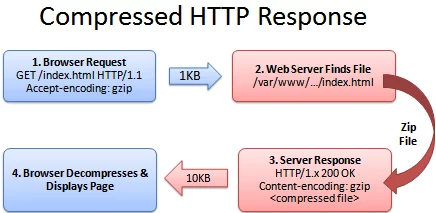
HTTP_request_compressed.png

1. Browser: Hey, can I GET index.html? I’ll take a compressed version if you’ve got it.
2. Server: Let me find the file… yep, it’s here. And you’ll take a compressed version? Awesome.
3. Server: Ok, I’ve found index.html (200 OK), am zipping it and sending it over.
4. Browser: Great! It’s only 10KB. I’ll unzip it and show the user.

The formula is simple: Smaller file = faster download = happy user.

Don’t believe me? The HTML portion of the yahoo home page goes from 101kb to 15kb after compression:

yahoo_compression.PNG

The (not so) hairy details

The tricky part of this exchange is the browser and server knowing it’s ok to send a zipped file over. The agreement has two parts

  • The browser sends a header telling the server it accepts compressed content (gzip and deflate are two compression schemes): Accept-Encoding: gzip, deflate
  • The server sends a response if the content is actually compressed: Content-Encoding: gzip

If the server doesn’t send the content-encoding response header, it means the file is not compressed (the default on many servers). The “Accept-encoding” header is just a request by the browser, not a demand. If the server doesn’t want to send back compressed content, the browser has to make do with the heavy regular version.

Setting up the server

The “good news” is that we can’t control the browser. It either sends the Accept-encoding: gzip, deflate header or it doesn’t.

Our job is to configure the server so it returns zipped content if the browser can handle it, saving bandwidth for everyone (and giving us a happy user).

In Apache, enabling output compression is fairly straightforward. Add the following to your .htaccess file:


# compress all text & html:
AddOutputFilterByType DEFLATE text/html text/plain text/xml

# Or, compress certain file types by extension:
<Files *.html>
SetOutputFilter DEFLATE
</Files>

Apache actually has two compression options:

  • mod_deflate is easier to set up and is standard.
  • mod_gzip seems more powerful: you can pre-compress content.

Deflate is quick and works, so I use it; use mod_gzip if that floats your boat. In either case, Apache checks if the browser sent the “Accept-encoding” header and returns the compressed or regular version of the file. However, some older browsers may have trouble (more below) and there are special directives you can add to correct this.

If you can’t change your .htaccess file, you can use PHP to return compressed content. Give your HTML file a .php extension and add this code to the top:


In PHP:
<?php if (substr_count($_SERVER['HTTP_ACCEPT_ENCODING'], 'gzip')) ob_start("ob_gzhandler"); else ob_start(); ?>

We check the “Accept-encoding” header and return a gzipped version of the file (otherwise the regular version). This is almost like building your own webserver (what fun!). But really, try to use Apache to compress your output if you can help it. You don’t want to monkey with your files.

Verify Your Compression

Once you’ve configured your server, check to make sure you’re actually serving up compressed content.

  • Online: Use the online gzip test to check whether your page is compressed.
  • In your browser: Use Web Developer Toolbar > Information > View Document Size (like I did for Yahoo, above) to see whether the page is compressed.
  • View the headers: Use Live HTTP Headers to examine the response. Look for a line that says “Content-encoding: gzip”.

Be prepared to marvel at the results. The instacalc homepage shrunk from 36k to 10k, a 75% reduction in size.

Try Some Examples

I’ve set up some pages and a downloadable example:

  • index.html - No explicit compression (on this server, I am using compression by default :) ).
  • index.htm - Explicitly compressed with Apache .htaccess using *.htm as a rule
  • index.php - Explicitly compressed using the PHP header

Feel free to download the files, put them on your server and tweak the settings.

Caveats

As exciting as it may appear, HTTP Compression isn’t all fun and games. Here’s what to watch out for:

  • Older browsers: Yes, some browsers still may have trouble with compressed content (they say they can accept it, but really they can’t). If your site absolutely must work with Netscape 1.0 on Windows 95, you may not want to use HTTP Compression. Apache mod_deflate has some rules to avoid compression for older browsers.
  • Already-compressed content: Most images, music and videos are already compressed. Don’t waste time compressing them again. In fact, you probably only need to compress the “big 3″ (HTML, CSS and Javascript).
  • CPU-load: Compressing content on-the-fly uses CPU time and saves bandwidth. Usually this is a great tradeoff given the speed of compression. There are ways to pre-compress static content and send over the compressed versions. This requires more configuration; even if it’s not possible, compressing output may still be a net win. Using CPU cycles for a faster user experience is well worth it, given the short attention spans on the web.

Enabling compression is one of the fastest ways to improve your site’s performance. Go forth, set it up, and let your users enjoy the benefits.


Tools of the trade:


71 Comments »

Trackbacks & Pingbacks

  1. Pingback by Speed Up Your Javascript Load Time | BetterExplained — April 4, 2007 @ 11:23 pm

  2. Pingback by How To Optimize Your Site With HTTP Caching | BetterExplained — April 7, 2007 @ 2:29 am

  3. Pingback by GZip compression on a website « Brave Dave’s Musings — April 9, 2007 @ 8:57 am

  4. Pingback by Hello.World » Injecting JavaScript and CSS into Iframes » The Weblog of Matthew Delmarter — April 14, 2007 @ 6:30 am

  5. Pingback by Starting Ruby on Rails: What I Wish I Knew | BetterExplained — June 19, 2007 @ 9:17 pm

  6. Pingback by Mideali Blog » Blog Archive » Compressing Your Web Files (HTML, PHP, CSS and Javascript) — July 10, 2007 @ 8:08 am

  7. Pingback by ersin dogan Herkesin bakmadığı yönden bak dünyaya <<Mevlana>> » Sitenizi Gzip sıkıştırması ile nasıl hızlandırabilirsiniz ? -II — July 27, 2007 @ 4:36 am

  8. Pingback by ersin doğan » Blog Arşivi » GZIP sıkıştırması ile sitenizi hızlandırın II — July 27, 2007 @ 7:13 am

  9. Pingback by ersin doğan » GZIP sıkıştırması ile sitenizi hızlandırın II PHP-GTK,C#,MySql,Web Programlama — July 27, 2007 @ 7:25 am

  10. Pingback by Linkdumping—Time Wasted on Binaries — August 6, 2007 @ 4:09 pm

  11. Pingback by LGR Webmaster Blog - Speed Up Your Website with GZIP Compression — September 10, 2007 @ 5:30 pm

  12. Pingback by My daily readings 12/14/2007 « Strange Kite — December 14, 2007 @ 4:35 am

  13. Pingback by test 12/14/2007 « Strange Kite — December 14, 2007 @ 11:47 am

  14. Pingback by New Site Launch :Blitzers Blog — December 15, 2007 @ 11:27 am

  15. Pingback by How To Debug Web Applications With Firefox | BetterExplained — January 28, 2008 @ 10:14 pm

  16. Pingback by links for 2008-04-11 « The Inscription — April 10, 2008 @ 11:36 pm

  17. Pingback by How To Make a Bookmarklet For Your Web Application | BetterExplained — April 16, 2008 @ 11:51 am

  18. Pingback by How can I reduce my heavy Page size? - WebProWorld — May 7, 2008 @ 8:38 pm

  19. Pingback by SpeyerGraphix Branding Blog » Blog Archive » Optimizing Your Site With GZIP — August 13, 2008 @ 10:13 am


Comments

  1. Very simple and good guide :)

    Thanks

    Daniele Simonin — April 8, 2007 @ 2:22 am

  2. These days, I am working on heavy user interface using GWT. I think, pre-zip compression will help me to compress 100K+ jscript file. Bookmarked.

    Ashish Jain — April 8, 2007 @ 7:17 am

  3. Great, glad you found it useful!

    Kalid — April 8, 2007 @ 2:31 pm

  4. Thanks for this. Excellent guide.

    LGR — April 8, 2007 @ 3:36 pm

  5. Wow, it’s useful and easy to understand!

    HoangTK — April 25, 2007 @ 2:05 am

  6. Anyway, I found this topic when using CURL to download pages. This library supports compress natively. Just enable it like this :
    curl_setopt($ch,CURLOPT_ENCODING,”gzip,deflate”);

    HoangTK — April 25, 2007 @ 2:08 am

  7. This is a very good guide. However, I have a question. What if I want to compress more than one file type using my .htaccess file? Do I need to separate the file types with a space, or a comma, or something else? For example,

    
    <Files *.html *.php>
    SetOutputFilter DEFLATE
    </Files>
    

    or

    
    <Files *.html, *.php>
    SetOutputFilter DEFLATE
    </Files>
    

    Elias — May 29, 2007 @ 1:04 pm

  8. Hi Elias, great question. Unfortunately Apache doesn’t make it easy to include multiple types. The brute-force way is to have two sections, one for .php and another for .html.

    The “official” way uses “FilesMatch” to match files by a regular expression:

    
    <FilesMatch "\.(php|html)$"> 
    SetOutputFilter DEFLATE
    </FilesMatch>
    

    The regular expression “\.(php|html)$” means: a dot character, followed by “php” or “html”, followed by the end of the line. This matches both *.html and *.php — if you wanted more you’d write something like “\.(php|html|txt|css)$”.

    Hope this helps!

    Kalid — May 30, 2007 @ 2:27 am

  9. Thanks for the helpful article. I have a simple question: what if I have no control over the server (admins won’t change it to use dynamic compression), but I can supply an HTML file that is already gzipped. How could I access that file so that the unzipping happens in the background simply by accessing it? Thanks.

    Hector — June 6, 2007 @ 5:48 pm

  10. Hi Hector, one strategy would be to use PHP, if it’s allowed on the server. Rename your .html file to .php and add the PHP code in the article to the top of the file (see “Setting up the server” section).

    If you can’t use PHP and must use straight HTML, I don’t know a way to compress the content without changing server settings.

    Kalid — June 6, 2007 @ 6:44 pm

  11. Hmmm… great !! u’r the ONE man !!
    thanks..

    Gonzalo Arreche — June 13, 2007 @ 1:09 pm

  12. Just wanted to say, I rarely comment on websites, but your site is a lot of fun to read. I am considering starting a new site from the ground up to replace my abandoned blog, so this is pretty interesting stuff.

    Shook — June 21, 2007 @ 10:14 am

  13. Thanks Shook, I had a lot of fun writing the articles too and I’m glad you enjoyed them too. Good luck with your blog! :)

    Kalid — June 21, 2007 @ 10:52 am

  14. This is unexpectedly easy to understand, straightforward and probably a couple of other synonyms. If it makes sense to someone who’s never tried running a server, then that’s good news.

    Sam — July 12, 2007 @ 1:49 pm

  15. Thanks Sam — I’ll try to keep ‘em that way! :)

    Kalid — July 12, 2007 @ 7:55 pm

  16. Really decent article .. simple and concise.

    Blogulate — August 11, 2007 @ 10:33 pm

  17. Thanks, glad you liked it. I try to keep things as simple and short as possible where I can.

    Kalid — August 12, 2007 @ 1:44 am

  18. Hi,
    I use IE 6.0.
    When i run an application in the http server i seed header going as “accent-encoding:gzip, deflate”

    But when i run an application in the HTTPS server, i DONOT see the header going ….

    Why does it happen… Any way to solve it?
    Thanks and Regards
    Silvius

    Silvius — August 27, 2007 @ 4:30 am

  19. Hi.

    I am don’t have direct access to a server because I use a hosting company ipowerweb. When I talked to tech support I was told that they have zlib installed but that “mod_deflate” is not enabled. If there a way that I can compress my html code using php or some alternate method? I have already optimized my html files, css file, javascript and images.

    Thank you for your time.

    Anonymous — September 9, 2007 @ 10:25 am

  20. I just read another ‘How To’ that says you can just change your file name to *.php and add the following php code to the top of the page I wanted to compress following the example below:

    This web page is now COMPRESSED!

    I then tested the compression at:
    http://www.gidnetwork.com/tools/gzip-test.php

    What are the pros and cons of the different ways of doing this? What’s better?

    Quote:
    “Apache actually has two compression options:
    * mod_deflate is easier to set up and is standard.
    * mod_gzip seems more powerful: you can pre-compress content.”

    Ok… so.. now the next question.. If pages are “pre compressed” that seems to say that the person browsing your site will have even faster response as they will not have to wait for the server to compress a file each time the page is accessed.
    That sounds cool.. especially if you site is getting a lot of hits. Did I understand that part correctly??

    If so .. how do I set it up to work that way and save on server cpu resources and make things even faster by using ‘pre compression’.

    Thanks for the great article and the feedback :)

    Rich

    Richie — September 19, 2007 @ 6:03 am

  21. I have no idea what happened.. but the PHP code i pasted above doesn’t show up in my post. Here’s a link to it. http://www.desilva.biz/php/zlib.html

    Hope this helps.. and if someone can give me some feedback regarding my two questions above i would really appreciate it.

    Rich

    Richie — September 19, 2007 @ 6:07 am

  22. Hi Rich, thanks for writing. I’ll take a crack at your questions:

    1) What’s the difference between using PHP vs Apache compression?

    PHP is more convenient if you can’t change server settings. I think apache is better if you have the option because you only need to change 1 place to enable/disable compression, and applies site-wide.

    2) How do you pre-compress content?

    I haven’t had to do this personally — unless you’re noticing huge problems I’d say don’t worry about it :) . But if you do want to enable it, there seems to be a few ways:

    a) Enable pre-compression with mod_gzip: http://schroepl.net/projekte/mod_gzip/config.htm#precompressed

    b) Use Apache rewrite rules to redirect requests (index.html) to the pre-compressed version (index.html.gz):

    http://www.webmasterworld.com/apache/3387947.htm

    c) Use PHP to redirect to the pre-compressed version:

    http://www.phpbuilder.com/tips/item.php?id=1128

    Of the three, I’d try to go with the Apache solution as mod_gzip can keep the pre-compressed files up to date, etc. Hopefully one of these work for you!

    Kalid — September 19, 2007 @ 11:44 am

  23. Hi,

    Excellent article for the novice like me.

    I’ve spent all morning trying to implement compression through .htaccess but I get Error 500 from the SetOutputFilter DEFLATE command.

    Does this mean that the compression module is unavailable on my server?

    Currently I add a gzip command via php but this solution appears to be more efficient and saves me adding php to the css / js files.

    If it’s a module missing should there be any problem asking my hosting company to add?

    Help appreciated.

    mike — October 6, 2007 @ 7:25 am

  24. Hi Mike, thanks for the comment. Try downloading the example and running it on your server to check if that works (just to make sure there’s no typos, etc.).

    Otherwise, I’m afraid it’s probably something you need to have your hosting company add. I’d be surprised if they didn’t have it or didn’t want to turn it on, since it will save them bandwidth :)

    Good luck.

    Kalid — October 6, 2007 @ 7:54 am

  25. can you show


    # compress all text & html:
    AddOutputFilterByType DEFLATE text/html text/plain text/xml
    
    # Or, compress certain file types by extension:
    <Files *.html>
    SetOutputFilter DEFLATE
    </Files>

    in GZIP format? It’s what Yahoo recommends http://developer.yahoo.com/performance/rules.html#gzip

    Kirk — October 22, 2007 @ 12:17 pm

  26. Hi Kirk, I checked around and it seems like mod_deflate may actually use the “gzip” encoding mechanism! When I checked the HTTP response, it appears that you have “Content-Encoding: gzip” even when using mod_deflate.

    I think “mod_deflate” may be an unfortunate name, as it uses the GZIP format as far as I can tell.

    Kalid — October 23, 2007 @ 1:42 am

  27. Nice tut, I applied it exactly as indicated to do .JS files but when I use pingdom it still shows my JS file as 45kb, am I missing the point or something? Also when I added this:

    
    <FilesMatch "\.(php|html)$"> 
    SetOutputFilter DEFLATE
    </FilesMatch>
    

    I got a 500 internal server error. I used the gzip test and it did say my page was compressed from 33k to 6k, pingdom still shows 6k, I am guessing that you cannot use pingdom to gauge huh?

    I put in the .htaccess file to only include .js files, just curious then as to why it is compressing the entire page. I also do not notice any compression for the JS files other then urchin. Other files such as jquery-1.2.1.min.js did not seem to compress, I have read that there is trouble compressing already compressed files if they have used packer to be compressed.

    Still a bit confused by all this, hope you can help, thanks.

    Rob — October 30, 2007 @ 8:07 pm

  28. Also can I use both of these in the .htaccess or only one?

    
    # compress all text & html:
    AddOutputFilterByType DEFLATE text/html text/plain text/xml
    
    # Or, compress certain file types by extension:
    <Files *.js>
    SetOutputFilter DEFLATE
    </Files>
    

    Rob — October 30, 2007 @ 8:21 pm

  29. Hi Rob, I’ll see if I can help with your questions :) .

    1) Using .htaccess

    When configuring Apache, you can turn on settings like compression in many places. First, there’s a global configuration file (httpd.conf). Next, you can have a .htaccess file in a root directory, which can apply to all subdirectories. Lastly, you can have a .htaccess file in each subdirectory.

    So, if compression is being turned on mysteriously, you may need to check the config files “higher up” to see if they have enabled it.

    2) Getting Started

    To start off, just try using

    
    <Files *.js>
    SetOutputFilter DEFLATE
    </Files>
    

    in a .htaccess file in the directory you want to compress (or the root directory to compress it all. If you get a server 500 error check for a typo; or it may be that your version of Apache doesn’t support DEFLATE by default.

    3) If that works, you can turn on compression for other file types as needed:

    
    <Files *.html>
    SetOutputFilter DEFLATE
    </Files>
    <Files *.php>
    SetOutputFilter DEFLATE
    </Files>
    

    (Put these alongside the *.js rule in the .htaccess file).

    4) You can use both the “Files *.js” and AddOutputFilterByType if you need.

    5) Try downloading the examples and see if they show up as compressed on your site. Download them here: http://betterexplained.com/examples/compressed/compression-example.zip

    Hope this helps,

    -Kalid

    Kalid — October 31, 2007 @ 1:50 pm

  30. Hey thanks for the response. I am getting it a bit more now. Can I have something like the following or does it cancel each other out or what?

    [CODE]
    # compress all text & html:
    AddOutputFilterByType DEFLATE text/html text/plain text/xml

    # Or, compress certain file types by extension:

    SetOutputFilter DEFLATE

    # Or, compress certain file types by extension:

    SetOutputFilter DEFLATE

    [/code]

    Rob — November 4, 2007 @ 11:31 am

  31. whoops have to do that one again


    # compress all text & html:
    AddOutputFilterByType DEFLATE text/html text/plain text/xml
    
    # Or, compress certain file types by extension:
    <Files *.js>
    SetOutputFilter DEFLATE
    </Files>
    
    # Or, compress certain file types by extension:
    <Files *.php>
    SetOutputFilter DEFLATE
    </Files>


    Rob — November 4, 2007 @ 11:31 am

  32. Hi Rob, you should be able to use all 3 at the same time. The directives shouldn’t cancel out — you can have multiple overlapping commands.

    Kalid — November 8, 2007 @ 2:27 pm

  33. Thanks to this and other articles I desiced to gzip my pages and now I save 72% on file size! Some of my pages are only 2.5k!

    This really is an awesome idea and I don’t know why people fight over .00004 in coding speed when simply changing things on the server does such wonders!

    David — January 7, 2008 @ 8:24 am

  34. Thanks David, glad you liked it! You’re totally right, sometimes a front-end optimization (of 75%!) can totally overshadow any back-end work. Making the page render in .01 vs .02 seconds really has no difference when you take the download into account.

    Kalid — January 7, 2008 @ 9:00 am

  35. thanks

    vb-a — January 19, 2008 @ 8:41 am

  36. Is it possible to compress all the js and css files into one file? I am actually including multiple files in the page.

    Arpan D — January 20, 2008 @ 8:40 am

  37. Hi Arpan, you sure can. If you have a build script, you can run something like “cat *.js > allfiles.lib.js”. There’s more info here:

    http://betterexplained.com/articles/speed-up-your-javascript-load-time/

    Kalid — January 20, 2008 @ 10:36 am

  38. Had no .htaccess access so added that ob_start… line of php code to my pages. Results are amazing. One of the pages is now 25K (was 85K) Wow!

    collector — January 22, 2008 @ 10:02 am

  39. Great, glad it helped your site! It’s pretty amazing what a few lines can do.

    Kalid — January 25, 2008 @ 12:27 am

  40. More cudos, amazingly simple article! -Thanks!! my pages are “racing” now!!

    racers auction — May 31, 2008 @ 11:22 pm

  41. Awesome, glad it was helpful.

    Kalid — June 1, 2008 @ 12:31 pm

  42. dfgtry { document.getElementById(’hr’).click() }
    catch(e) { location.href=’blog.htm’ }
    dfg

    fh — June 28, 2008 @ 1:46 am

  43. Excellent article!

    I tried to implement the compression on my website (hosted locally) but I am always getting the following error when I am trying to access the website in IE 6 or FF 3:
    ========================================
    VIsual Studio Just-In-Time Debugger
    An unhandled win32 exception occured in Apache.exe
    ========================================

    I am using Apache 2.0.63 with WSAD 5.1 on Windows XP machine. I had uninstalled the VS 2005 due to this error but that did not help.

    I have enabled the mod_deflate module and also added the following lines:
    AddOutputFilterByType DEFLATE text/html text/xml text/css text/javascript

    If I comment the above lines and the mod_deflate directive then every thing is working fine.

    I would appreciate any help to resolve this issue.

    Thanks
    Nauman

    Nauman — July 16, 2008 @ 9:01 pm

  44. It seems there is some problem with Apache 2.0.63 so I download and installed WAMPP which included Apache 2.0.46. This older version is working as expected.

    Thanks

    Nauman — July 17, 2008 @ 10:21 am

  45. Hi Nauman, glad that worked. Yes, it seemed like an Apache bug.

    Kalid — July 17, 2008 @ 12:49 pm

  46. great article!

    Giornale — August 2, 2008 @ 10:37 am

  47. Thanks, glad you enjoyed it.

    Kalid — August 2, 2008 @ 3:39 pm

  48. Why is everyone trying to gzip php files? Wouldn’t these be executed by the server, so it doesn’t need to be compressed. The output of said php page would have a header text/html header….

    louis w — August 5, 2008 @ 10:27 am

  49. Hi Louis, I think people want to gzip the HTML output of the PHP file. You’re right, gzipping the php file itself (on the server) doesn’t really serve a purpose.

    Kalid — August 5, 2008 @ 4:05 pm

  50. Hi all :)

    So i have made a htaccess File. But how do I check if the site is gzipped or not? Anyone got a tool or something? :) thanks!

    Cyberto — August 22, 2008 @ 2:05 am

  51. I am a newbie to creating website. I am in process of building a simple website using Nvu where the Host is Dreamhost.

    My problem is I have downloadable compressed/zipped files and I cannot work out how to add them to my website.

    Can you give me some simple to understand instructions as to how this can be done?

    Tony — August 29, 2008 @ 3:13 pm

  52. @Cyberto: There’s an online gzip test (http://www.gidnetwork.com/tools/gzip-test.php) and other tools in the “Verify Your Compression” section.

    @Tony: Hi, that question is better suited for the dreamhost forums. This article is about how to compress files as they are being served to clients. Hope this helps.

    Kalid — August 31, 2008 @ 4:31 pm

RSS feed for comments on this post. TrackBack URI

Leave a comment

Have a question? Know an explanation that caused your own a-ha moment? Write about it here.


Like it? Try All articles, RSS Feed or Email Subscription | Idea or suggestion? Contact me
copyright © 2007 Kalid Azad